FIRMette Web - Help Page
Source:
What is a FIRM?
The Flood Insurance Rate Map (FIRM) is the official flood map of a community on which FEMA has delineated both the Special Flood Hazard Areas and the risk premium zones applicable to the community.
What is a FIRMette?
A FIRMette is a full-scale section of a FIRM that you create yourself, and that is formatted to fit on standard printer paper sizes. Full FIRM panels are quite large (36’ x 25.875’), so most users will prefer to create and print out a smaller selected portion. After finding your specific area of interest on the FIRM, such as your house or development, you can create a FIRMette of the area. FIRMettes can be used in place of the FIRM for National Flood Insurance Program actions.
Note that the static FIRM images on the Map Service Center do not reflect changes or amendments which may have been made subsequent to the date on the title block. For additional information about how to make sure the map is current, please see the Flood Hazard Mapping Updates Overview Fact Sheet available on the FEMA Flood Map Service Center home page at https://msc.fema.gov.
What is FIRMette Web?
FIRMette Web is a web-based tool that displays the FIRM or flood map index selected after completing your search on the FEMA Flood Map Service Center (MSC). The FIRMette Web tool allows users to view, print, and download smaller portions of a FIRM. These smaller sections are called FIRMettes.
Moving Around in FIRMette Web
You can move around the map and use the labeled streets or other map features to locate your specific area of interest by clicking the map and dragging in the desired direction. Use mouse scroll wheel to zoom in and out when cursor is placed on the map and/or use the Zoom in and Zoom out buttons to zoom in or out on the image.
The following buttons are used to zoom in/out, reset the image, zoom to a selected location, view additional map pages, and make a FIRMette from the image:
 Zoom In
 Zoom Out
 Fit to Window – This resets the image to its initial view and size to when the page originally loaded.
 CLICK MAP TO ZOOM IN – Zooms the map to a location you click on at full map scale.
**Note to Users with Keyboard Only Navigation: The CLICK MAP TO ZOOM IN function will not work without the use of a mouse to select the desired point on the map. Keyboard Only users should instead zoom using the Zoom In function and pan by tabbing to the map and using the keyboard arrows to move the map left, right, up, and down to locate the desired area of interest.
Pagination – The MSC houses some older maps that are multi-page images. If you are viewing one of these maps you can utilize the functions in the top right of the FIRM view screen including the arrows to increase or decrease the page number you are viewing, scroll to select different pages, or jump to the first or last page.

 Create a FIRMette – This option will start the process of creating a FIRMette.
Creating a FIRMette
Once you have clicked on the Create a FIRMette button, FIRMette Web loads a set of new layout and printing tools located to the left of the image. The map is zoomed out and three selection boxes are displayed in the main map window.
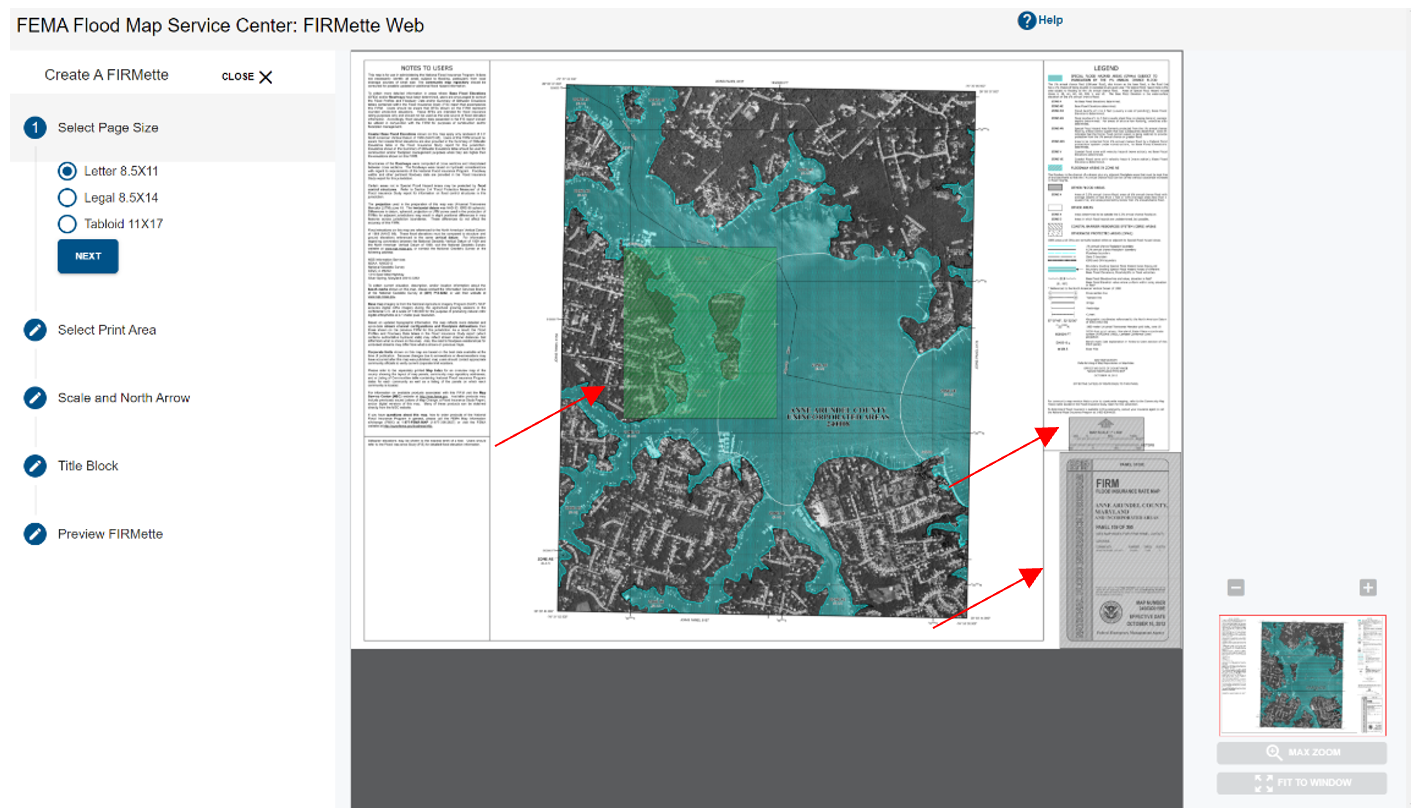
The FIRMette creation tools allow you to specify aspects of the FIRMette output, such as page size and file format, and the selection boxes will enable you to specify the key portions of the map to include on the FIRMette. There are five steps for creating a FIRMette:
-
Select a page size
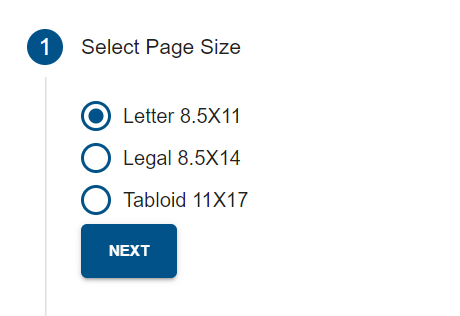 There are three optional page sizes to save a FIRMette: letter, legal, and tabloid. You can adjust the page size by selecting the corresponding button. Notice that the size of the print area selection box located at the upper left corner of the map changes with the page size. The larger the selected page size, the bigger the print area selection box. Selecting Close will exit the FIRMette creation process and take you back to the map view. Selecting Next will display the Select Print Area step.
 -
Select Print Area
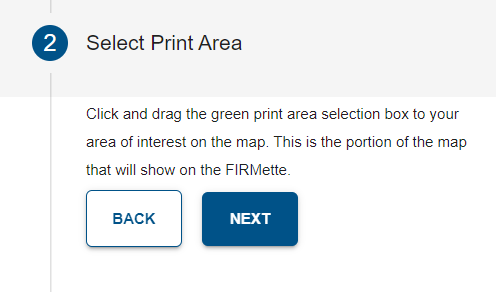 There are three selection boxes in the map view window. Their function is to help the user set the map’s printing area, the scale & north arrow, and the map title block, which combined create a FIRMette. Users can define the selected area by dragging the active box over to the area of interest. The active selection box is the green shaded area. Only one selection box can be active at a time. Switching between the selection boxes can be done by clicking on the associated step in the flow. For example, in the picture above, the print area is the active box. Selecting Back will take you back to the Select a Page Size step, selecting Next will take you to the North Arrow selection box.
**Note to Users with Keyboard Only Navigation: Once you have navigated to the desired step, hold down the Control key to use the keyboard arrows to move the selected box to the desired location. Users accessing FIRMette Web from an operating system other than Windows may need to hold down the Shift key and the Control key to use the keyboard arrows.
There are three selection boxes in the map view window. Their function is to help the user set the map’s printing area, the scale & north arrow, and the map title block, which combined create a FIRMette. Users can define the selected area by dragging the active box over to the area of interest. The active selection box is the green shaded area. Only one selection box can be active at a time. Switching between the selection boxes can be done by clicking on the associated step in the flow. For example, in the picture above, the print area is the active box. Selecting Back will take you back to the Select a Page Size step, selecting Next will take you to the North Arrow selection box.
**Note to Users with Keyboard Only Navigation: Once you have navigated to the desired step, hold down the Control key to use the keyboard arrows to move the selected box to the desired location. Users accessing FIRMette Web from an operating system other than Windows may need to hold down the Shift key and the Control key to use the keyboard arrows. -
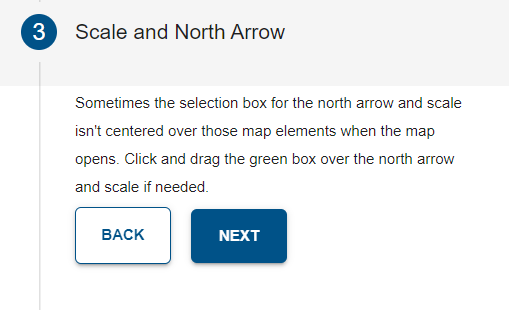
Scale and North Arrow
-
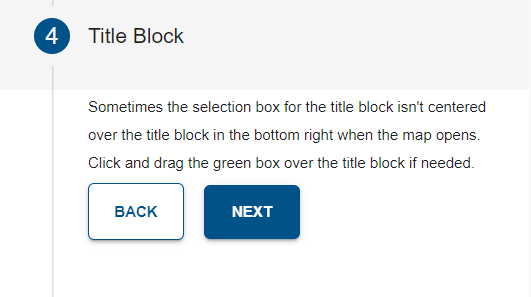
Title Block
-
Preview FIRMette
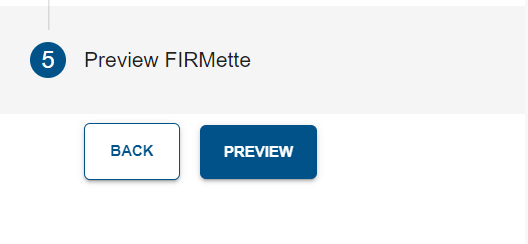
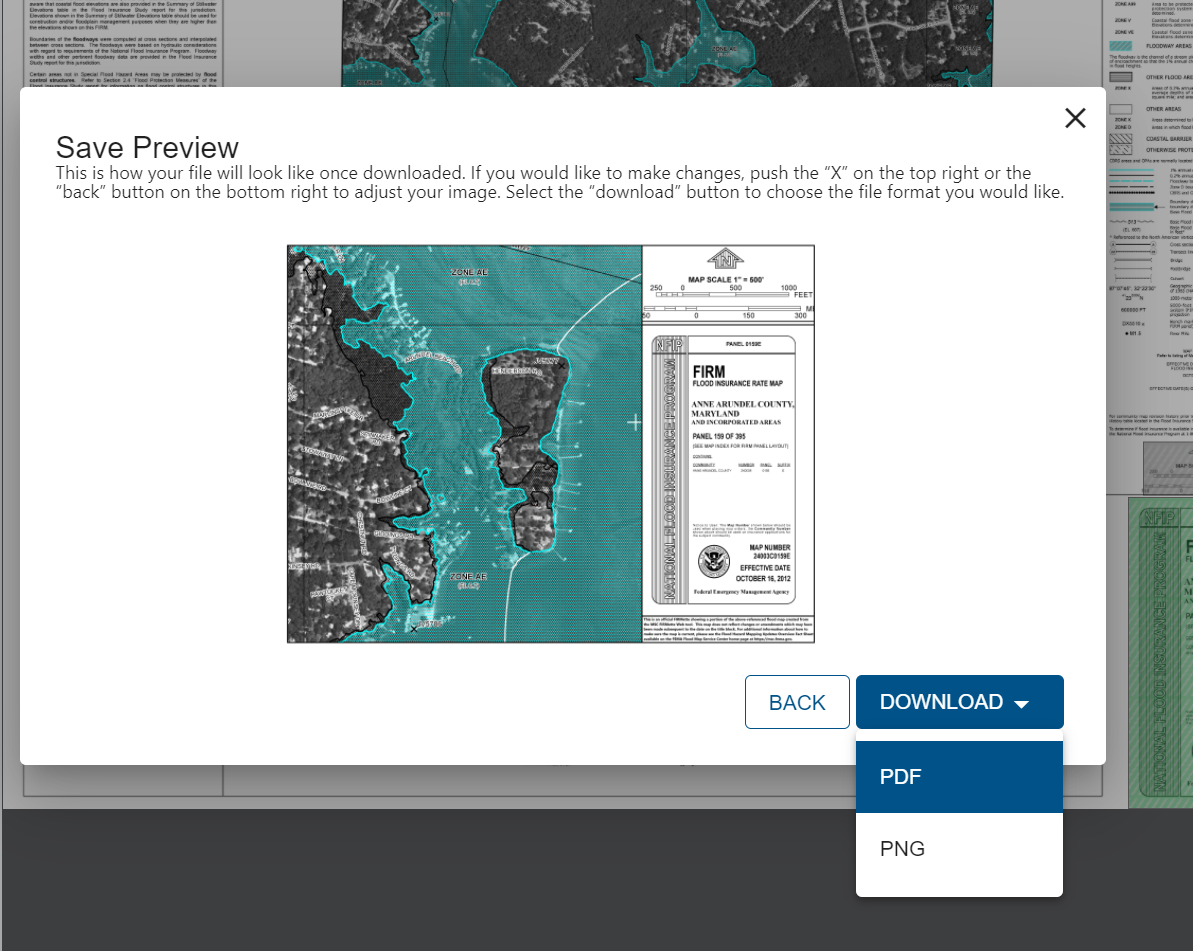
Select the Preview button and a pop up will appear with a preview of the FIRMette. If adjustments are required, select Back to make edits. If FIRMette is complete, select Download and select a file format to save the FIRMette (PDF or PNG). The download will begin automatically.
If you have any additional questions or require further assistance, please contact the FEMA Mapping and Insurance eXchange at 1-877-336-2627 or FEMA-FMIX@fema.dhs.gov.
Appendix
Note created via the Obsidian Web Clipper Browser Extension on 2025-12-30.
See Also
Backlinks
(c) No Clocks, LLC | 2025